🍀 A Game Controller Is a Second Keyboard for Your Mac
TL;DR: a game controller is a wireless macro pad you may already own. ControllerKeys maps its buttons, sticks, triggers, paddles, touchpads, and motion sensors—whichever ones the hardware actually has—to keyboard shortcuts, mouse input, macros, scripts, webhooks, OBS, and other Mac actions. It supports the familiar Xbox and PlayStation controllers, but also Nintendo, Steam, Apple TV, 8BitDo, and more than 300 third-party gamepads.
People pay $150 for a Stream Deck: fifteen buttons, wired to the desk. Meanwhile there is probably a DualSense, Xbox controller, Joy-Con, or tiny 8BitDo pad in a drawer somewhere. It already has Bluetooth, controls shaped for muscle memory, and enough inputs to run a surprising amount of a Mac. That asymmetry bothered me enough that I built ControllerKeys.
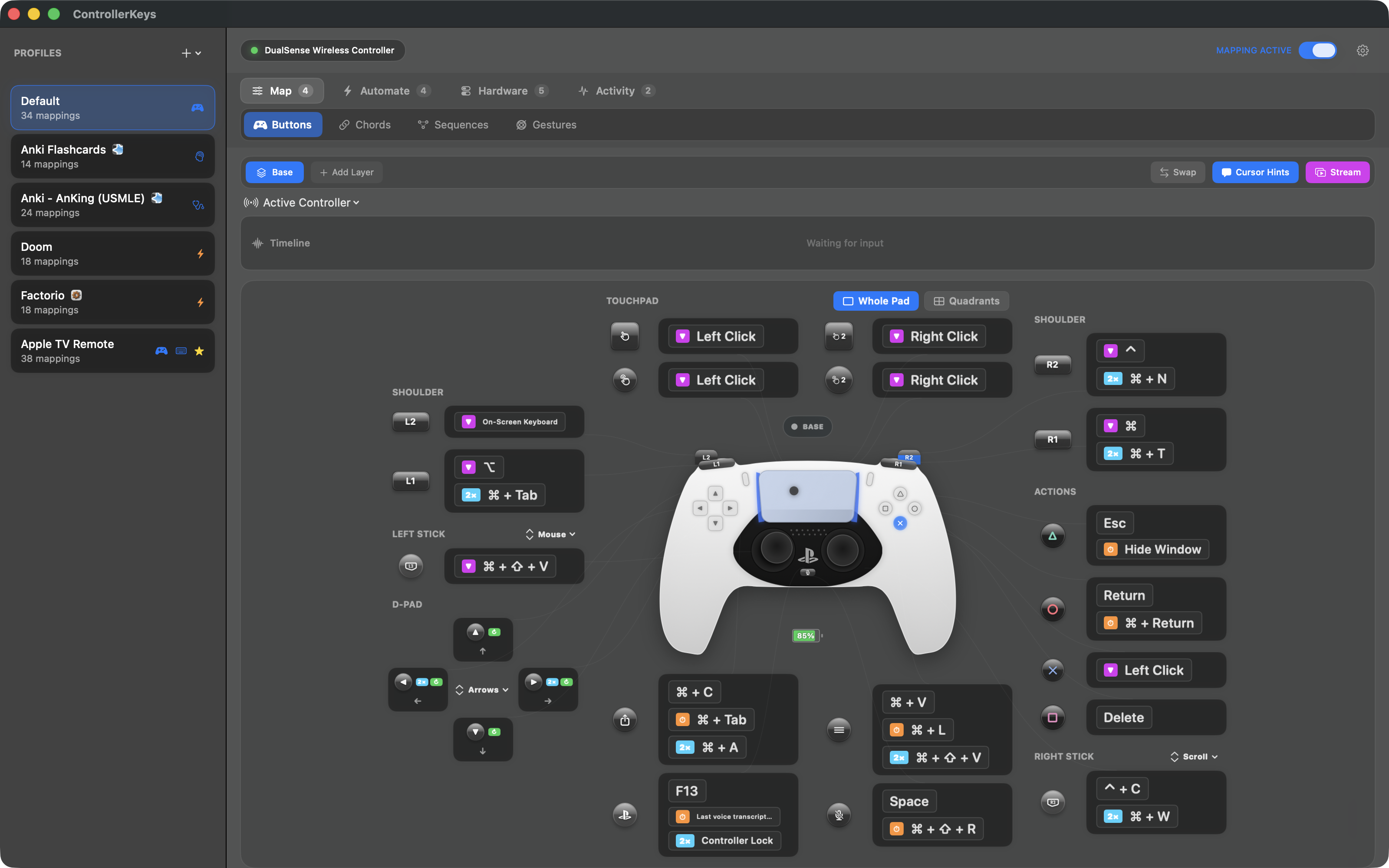
The core mechanic is layers. Hold or toggle a trigger and every button can mean something different. ControllerKeys supports up to twelve layers per profile, and unmapped controls can fall through to the layer below. A controller is not just one small keyboard—it can be a timeline controller, presentation remote, media remote, and automation console without changing devices.
Which game controllers work on a Mac?
ControllerKeys has first-class layouts and hardware-specific handling for these controllers:
| Family | Supported controllers and special hardware |
|---|---|
| Xbox | Xbox Series X|S, Xbox One, Xbox 360, and Xbox Elite Series 2—including all four rear paddles |
| PlayStation | PS5 DualSense, DualSense Edge, and PS4 DualShock 4 v1/v2—including touchpad regions, gyro, lightbar, and Edge paddles |
| Nintendo | Switch Pro Controller, a single Joy-Con, or paired left and right Joy-Cons |
| Valve | Original Steam Controller—including both touchpads, gyro, grips, and haptics, without Steam running |
| Apple | Second-generation Siri Remote / Apple TV Remote—including clickpad cursor control, side buttons, and iPod-wheel-style edge scrolling |
| 8BitDo | Zero 2 and Micro with dedicated layouts and corrected raw d-pad input, plus Pro 2, SN30 Pro, SN30 Pro+, Ultimate, Lite, Lite 2, Lite SE, and many others |
That is only the first-class list. Any standard controller recognized by macOS’s GameController framework can work out of the box. If macOS does not expose a useful mapping, ControllerKeys can read the raw HID device and apply a bundled copy of the SDL GameControllerDB. The current bundle contains 314 macOS mappings, including models from Logitech, PowerA, Hori, Razer, SteelSeries, GameSir, Amazon Luna, Google Stadia, and many smaller brands.
There is an important distinction here: a DualSense, Steam Controller, Siri Remote, or 8BitDo Micro gets device-specific handling for its unusual controls. A generic SDL fallback controller gets its standard buttons, sticks, and triggers mapped automatically. I would rather make that boundary clear than pretend every obscure gamepad has a gyroscope or touchpad it does not physically contain.
What can a controller button do on macOS?
A button can send a key or keyboard shortcut, hold a modifier, click or drag the mouse, type or paste text, launch an app, open a link, switch profiles, run a shell command or JavaScript, send an HTTP webhook, control OBS over WebSocket, or output a virtual MIDI control change. Macros chain those actions with delays.
Tap, double-tap, long-hold, repeat, chords, and ordered button sequences are separate triggers. Profiles can switch automatically with the frontmost app or the connected controller. The sticks can control the pointer, scrolling, WASD, arrow keys, or eight custom directions. DualSense and DualShock 4 owners can also use the gyro as a mouse and split the touchpad into four independently mappable regions.
That feature list sounds excessive until it is attached to a real workflow. These are the five where the controller has earned a permanent spot on my desk—or on somebody else’s.
1. Video editing from the couch
Map a stick to scrolling or bind its directions to J, K, L, and the arrow keys, depending on the editor. Put cut, trim, ripple delete, undo, and markers on the face buttons. Hold L2 for color controls and R2 for audio. A macro can handle the multi-step actions, such as exporting the current range.
The advantage is not that a controller replaces every editing surface. It is that common timeline work becomes comfortable from a couch, standing desk, or any position where a keyboard full of memorized chords is awkward.
2. OBS scenes without a Stream Deck
ControllerKeys speaks OBS WebSocket directly and can import Stream Deck V2 profiles. Buttons, chords, and macros can switch scenes, toggle sources or filters, start or stop recording, and mute audio. The optional stream overlay shows controller input inside an OBS capture.
The use case that surprised me was a physics professor at Arizona State running 200-student hybrid lectures with a DualSense. OBS scene switching goes on the face buttons, slides on the shoulders, and the touchpad becomes a cursor. The controller also has a laser-pointer overlay and a ready-made Google Slides / PowerPoint profile. Unlike a wired control deck, it can travel around a lecture hall.
3. Use an Xbox or PS5 controller as a Mac mouse
For a Mac mini connected to a TV, one stick moves the mouse and the other scrolls. A trigger can slow the pointer for precise clicks. The on-screen keyboard supports d-pad navigation and touchpad swipe typing, while the app bar, media controls, command wheel, and directory navigator cover the things I would otherwise get up to find a keyboard for.
ControllerKeys can also hand the controller-driven pointer, keyboard events, and mapped actions from one Mac to another over the local network or Tailscale. It is essentially Universal Control for the controller sitting in your hands.
4. Anki with a game controller
Medical students found ControllerKeys on their own and became one of its clearest audiences. Put Again, Hard, Good, and Easy on four buttons and review cards without hovering over a keyboard. That matters when the same four actions happen thousands of times.
I wrote the full setup up separately and included a prebuilt AnKing profile: Anki on a Game Controller.
The tiny 8BitDo Zero 2 and Micro are especially good here. ControllerKeys has dedicated layouts for both, including a raw-input fix for d-pads that macOS can misread.
5. Everyday Mac macros
This is the boring one I use most. Window snapping on the d-pad, tap to paste a text snippet, double-tap for a shell command, long-hold to switch apps. Four face buttons already hold twelve actions before adding a chord or layer.
The same system works for presentation controls, music production through virtual MIDI, smart-home HTTP requests, scripts that inspect the frontmost app, or app-specific shortcuts that activate only when Final Cut Pro, Photoshop, a browser, or a terminal is in front. Realtime mode skips the advanced-trigger delay for simple key mappings when latency matters.
I wrote more about why controller chords stay usable when keyboard shortcuts do not in Every Shortcut Within Reach.
The honest caveats
Bluetooth pairing is still Bluetooth pairing, and occasionally macOS will make that annoying. ControllerKeys also needs Accessibility permission to generate keyboard and mouse events; Automation permission is requested only for features that need it. The source is public for inspection, but it is source-available under PolyForm Noncommercial 1.0.0—not permissively licensed open-source software.
There is a learning curve. The first hour with a blank profile is remapping, not productivity. Community profiles and setup guides make that easier, and configuration history lets you undo a bad import or destructive edit.
ControllerKeys requires macOS 14.6 or later. The full app is free to try for 14 days with no account, then a one-time license is $19.99. Install it with Homebrew:
brew install --cask nsevent/tap/controllerkeysOr download the latest notarized DMG from GitHub. The ControllerKeys website has videos, controller-specific guides, and the full feature list; the public source is available if you want to inspect it or build your own noncommercial copy.
TL;DR: a game controller is a wireless macro pad you may already own. [ControllerKeys](https://kevintang.xyz/apps/controller-keys?utm_source=kevin-md&utm_medium=post&utm_campaign=controllerkeys-202608) maps its buttons, sticks, triggers, paddles, touchpads, and motion sensors—whichever ones the hardware actually has—to keyboard shortcuts, mouse input, macros, scripts, webhooks, OBS, and other Mac actions. It supports the familiar Xbox and PlayStation controllers, but also Nintendo, Steam, Apple TV, 8BitDo, and more than 300 third-party gamepads.
People pay $150 for a Stream Deck: fifteen buttons, wired to the desk. Meanwhile there is probably a DualSense, Xbox controller, Joy-Con, or tiny 8BitDo pad in a drawer somewhere. It already has Bluetooth, controls shaped for muscle memory, and enough inputs to run a surprising amount of a Mac. That asymmetry bothered me enough that I built ControllerKeys.

The core mechanic is layers. Hold or toggle a trigger and every button can mean something different. ControllerKeys supports up to twelve layers per profile, and unmapped controls can fall through to the layer below. A controller is not just one small keyboard—it can be a timeline controller, presentation remote, media remote, and automation console without changing devices.
## Which game controllers work on a Mac?
ControllerKeys has first-class layouts and hardware-specific handling for these controllers:
| Family | Supported controllers and special hardware |
| --- | --- |
| Xbox | Xbox Series X\|S, Xbox One, Xbox 360, and Xbox Elite Series 2—including all four rear paddles |
| PlayStation | PS5 DualSense, DualSense Edge, and PS4 DualShock 4 v1/v2—including touchpad regions, gyro, lightbar, and Edge paddles |
| Nintendo | Switch Pro Controller, a single Joy-Con, or paired left and right Joy-Cons |
| Valve | Original Steam Controller—including both touchpads, gyro, grips, and haptics, without Steam running |
| Apple | Second-generation Siri Remote / Apple TV Remote—including clickpad cursor control, side buttons, and iPod-wheel-style edge scrolling |
| 8BitDo | Zero 2 and Micro with dedicated layouts and corrected raw d-pad input, plus Pro 2, SN30 Pro, SN30 Pro+, Ultimate, Lite, Lite 2, Lite SE, and many others |
That is only the first-class list. Any standard controller recognized by macOS's GameController framework can work out of the box. If macOS does not expose a useful mapping, ControllerKeys can read the raw HID device and apply a bundled copy of the SDL GameControllerDB. The current bundle contains 314 macOS mappings, including models from Logitech, PowerA, Hori, Razer, SteelSeries, GameSir, Amazon Luna, Google Stadia, and many smaller brands.
There is an important distinction here: a DualSense, Steam Controller, Siri Remote, or 8BitDo Micro gets device-specific handling for its unusual controls. A generic SDL fallback controller gets its standard buttons, sticks, and triggers mapped automatically. I would rather make that boundary clear than pretend every obscure gamepad has a gyroscope or touchpad it does not physically contain.
## What can a controller button do on macOS?
A button can send a key or keyboard shortcut, hold a modifier, click or drag the mouse, type or paste text, launch an app, open a link, switch profiles, run a shell command or JavaScript, send an HTTP webhook, control OBS over WebSocket, or output a virtual MIDI control change. Macros chain those actions with delays.
Tap, double-tap, long-hold, repeat, chords, and ordered button sequences are separate triggers. Profiles can switch automatically with the frontmost app or the connected controller. The sticks can control the pointer, scrolling, WASD, arrow keys, or eight custom directions. DualSense and DualShock 4 owners can also use the gyro as a mouse and split the touchpad into four independently mappable regions.
That feature list sounds excessive until it is attached to a real workflow. These are the five where the controller has earned a permanent spot on my desk—or on somebody else's.
## 1. Video editing from the couch
Map a stick to scrolling or bind its directions to J, K, L, and the arrow keys, depending on the editor. Put cut, trim, ripple delete, undo, and markers on the face buttons. Hold L2 for color controls and R2 for audio. A macro can handle the multi-step actions, such as exporting the current range.
The advantage is not that a controller replaces every editing surface. It is that common timeline work becomes comfortable from a couch, standing desk, or any position where a keyboard full of memorized chords is awkward.
## 2. OBS scenes without a Stream Deck
ControllerKeys speaks OBS WebSocket directly and can import Stream Deck V2 profiles. Buttons, chords, and macros can switch scenes, toggle sources or filters, start or stop recording, and mute audio. The optional stream overlay shows controller input inside an OBS capture.
The use case that surprised me was a physics professor at Arizona State running 200-student hybrid lectures with a DualSense. OBS scene switching goes on the face buttons, slides on the shoulders, and the touchpad becomes a cursor. The controller also has a laser-pointer overlay and a ready-made Google Slides / PowerPoint profile. Unlike a wired control deck, it can travel around a lecture hall.
## 3. Use an Xbox or PS5 controller as a Mac mouse
For a Mac mini connected to a TV, one stick moves the mouse and the other scrolls. A trigger can slow the pointer for precise clicks. The on-screen keyboard supports d-pad navigation and touchpad swipe typing, while the app bar, media controls, command wheel, and directory navigator cover the things I would otherwise get up to find a keyboard for.
ControllerKeys can also hand the controller-driven pointer, keyboard events, and mapped actions from one Mac to another over the local network or Tailscale. It is essentially Universal Control for the controller sitting in your hands.
## 4. Anki with a game controller
Medical students found ControllerKeys on their own and became one of its clearest audiences. Put Again, Hard, Good, and Easy on four buttons and review cards without hovering over a keyboard. That matters when the same four actions happen thousands of times.
I wrote the full setup up separately and included a prebuilt AnKing profile: [Anki on a Game Controller](/anki-on-a-game-controller.md).
The tiny 8BitDo Zero 2 and Micro are especially good here. ControllerKeys has dedicated layouts for both, including a raw-input fix for d-pads that macOS can misread.
## 5. Everyday Mac macros
This is the boring one I use most. Window snapping on the d-pad, tap to paste a text snippet, double-tap for a shell command, long-hold to switch apps. Four face buttons already hold twelve actions before adding a chord or layer.
The same system works for presentation controls, music production through virtual MIDI, smart-home HTTP requests, scripts that inspect the frontmost app, or app-specific shortcuts that activate only when Final Cut Pro, Photoshop, a browser, or a terminal is in front. Realtime mode skips the advanced-trigger delay for simple key mappings when latency matters.
I wrote more about why controller chords stay usable when keyboard shortcuts do not in [Every Shortcut Within Reach](/every-shortcut-within-reach.md).
## The honest caveats
Bluetooth pairing is still Bluetooth pairing, and occasionally macOS will make that annoying. ControllerKeys also needs Accessibility permission to generate keyboard and mouse events; Automation permission is requested only for features that need it. The source is public for inspection, but it is source-available under PolyForm Noncommercial 1.0.0—not permissively licensed open-source software.
There is a learning curve. The first hour with a blank profile is remapping, not productivity. Community profiles and setup guides make that easier, and configuration history lets you undo a bad import or destructive edit.
ControllerKeys requires macOS 14.6 or later. The full app is free to try for 14 days with no account, then a one-time license is $19.99. Install it with Homebrew:
```sh
brew install --cask nsevent/tap/controllerkeys
```
Or [download the latest notarized DMG from GitHub](https://github.com/NSEvent/xbox-controller-mapper/releases/latest). The [ControllerKeys website](https://kevintang.xyz/apps/controller-keys?utm_source=kevin-md&utm_medium=post&utm_campaign=controllerkeys-202608) has videos, controller-specific guides, and the full feature list; the [public source](https://github.com/NSEvent/xbox-controller-mapper) is available if you want to inspect it or build your own noncommercial copy.